Skip to content
QToon Webtoon and Manga
Home Trending Genre Library
Happy Twogether

Ch.5

Page 1
Page 2
Page 4
Page 5
Page 7
Page 8
Page 10
Page 11
Page 13
Page 14
Page 16
Back to Series Details Back to Home
Previous Chapter 4 Next Chapter 6
Happy Twogether

Ch.5

Page 1 / 16

Series Details Home
Ch.25 29p Ch.24 12p Ch.23 119p Ch.22 19p Ch.21 18p Ch.19 11p Ch.18 135p Ch.17 16p Ch.16 15p Ch.15 13p Ch.14 13p Ch.13 13p Ch.12 120p Ch.11 95p Ch.10 138p Ch.9 127p Ch.8.1 97p Ch.8 91p Ch.7 15p Ch.6 87p Ch.5 16p Ch.4 85p Ch.3 101p Ch.2 131p Ch.1 187p
Previous Next
Home Trending Genre Library
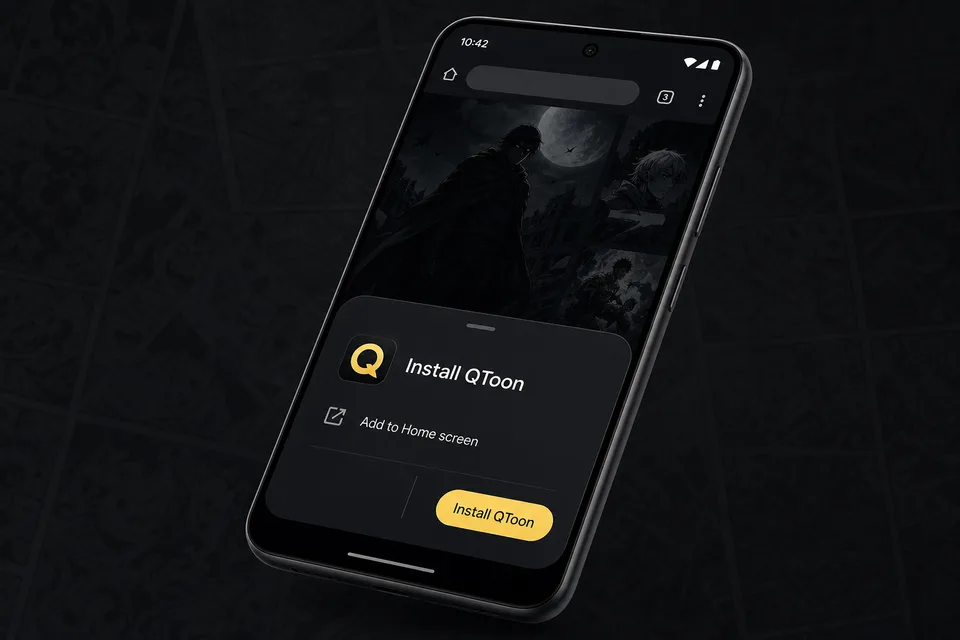
Android app mode

Install QToon

Add QToon to your home screen for a faster app-like reader, quick launch, and offline shell support.

  1. Tap Install now and confirm the browser install sheet.
  2. Open the browser menu and choose Add to Home screen.
  3. Launch QToon from the home screen icon.
Android browser install prompt for QToon
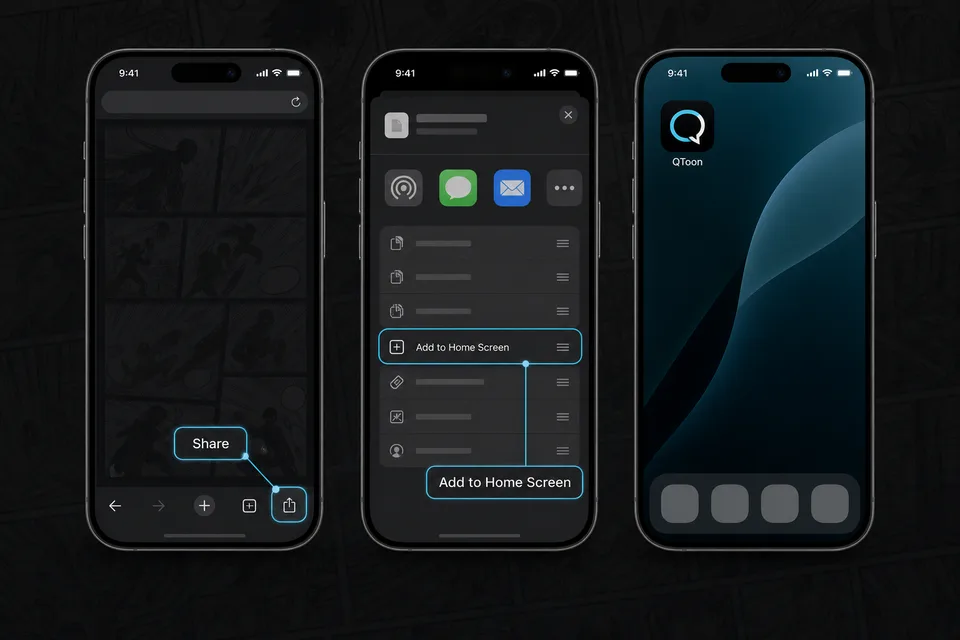
iPhone and iPad

Add QToon to Home Screen

iOS installs web apps from the browser share sheet. The QToon icon will open like a regular app after it is added.

  1. Tap the Share button in the browser toolbar.
  2. Choose Add to Home Screen.
  3. Confirm, then open QToon from the home screen.
iOS share menu showing Add to Home Screen for QToon