Summer Sparks NOTICE Reader P1 / 1 Summer Sparks NOTICE Page 1 / 1 × Series Details Home Chapter NOTICE ⌄ Side Story 11 (The End) 47p Side Story 10 44p Side Story 9 43p Side Story 8 50p Side Story 7 52p Side Story 6 44p Side Story 5 49p Side Story 3 44p Side Story 2 48p Side Story 1 49p The End 47p Ch. 50 51p Ch. 49 32p Ch. 48 32p Ch. 47 32p Ch. 46 33p Ch. 45 32p Ch. 44 33p Ch. 43 32p Ch. 42 32p Ch. 41 36p Ch. 40 36p Ch. 39 32p Ch. 38 40p Ch. 37 36p Ch. 36 36p Ch. 35 36p Ch. 34 40p Ch. 33 28p Ch. 32 36p Ch. 31 40p Ch. 30 36p Ch. 29 36p Ch. 28 40p Ch. 27 70p Ch. 26 44p Ch. 25 40p Ch. 24 36p Ch. 23 40p Ch. 22 40p Ch. 21 44p Ch. 20 36p Ch. 19 44p Ch. 18 36p Ch. 17 36p Ch. 16 48p Ch. 15 60p Ch. 14 40p Ch. 13 40p Ch. 12 32p Ch. 11 44p NOTICE 1p Ch. 10 32p Ch. 9 50p Ch. 8 40p Ch. 7 36p Ch. 6 40p Ch. 5 45p Ch. 4 40p Ch. 3 55p Ch. 2 36p Ch. 1 50p Prologue 25p Previous Next ↑
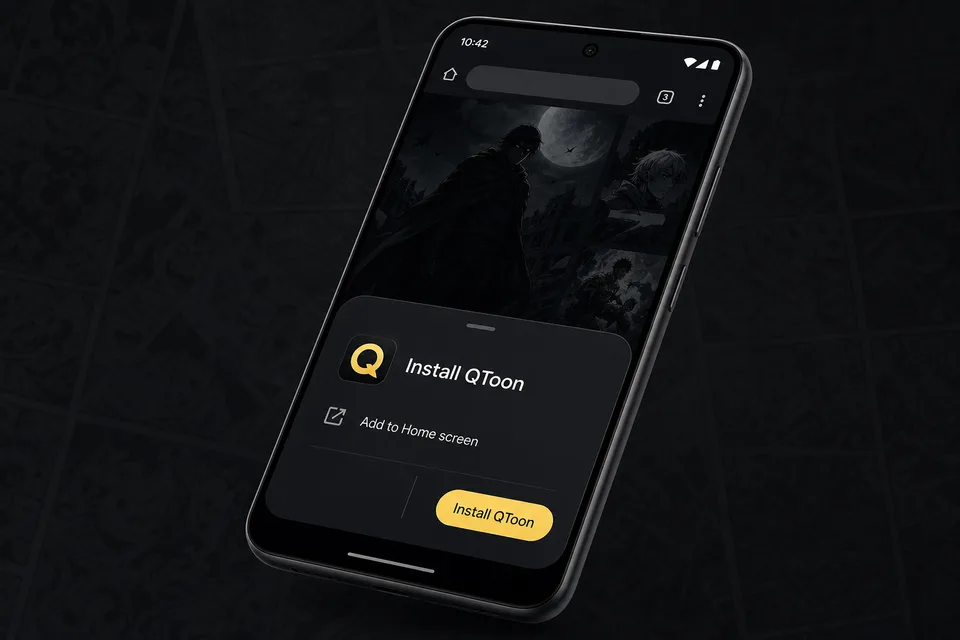
Android app mode Install QToon Add QToon to your home screen for a faster app-like reader, quick launch, and offline shell support. Tap Install now and confirm the browser install sheet. Open the browser menu and choose Add to Home screen. Launch QToon from the home screen icon. Install now Not now
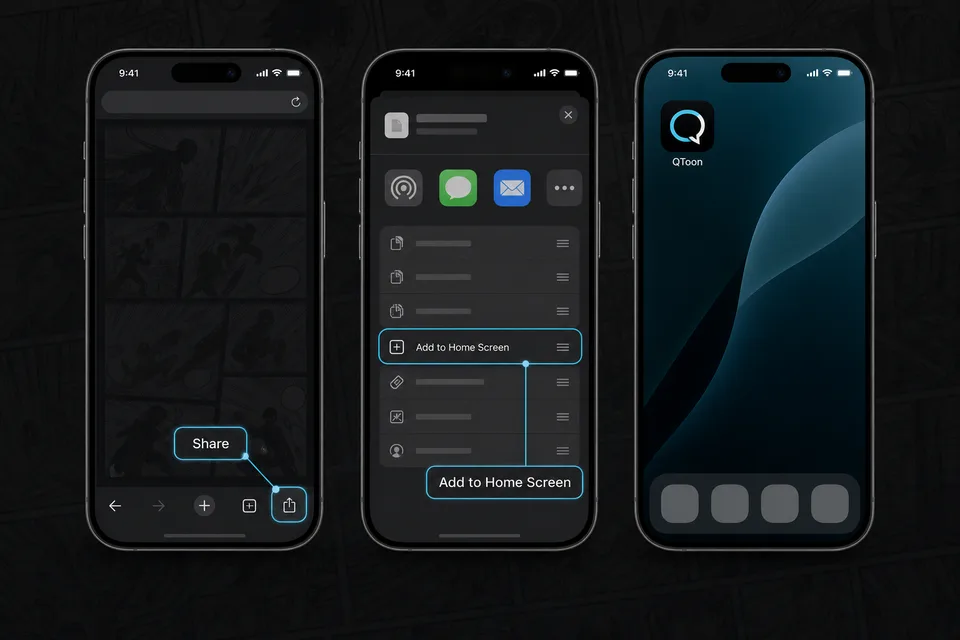
iPhone and iPad Add QToon to Home Screen iOS installs web apps from the browser share sheet. The QToon icon will open like a regular app after it is added. Tap the Share button in the browser toolbar. Choose Add to Home Screen. Confirm, then open QToon from the home screen. Got it